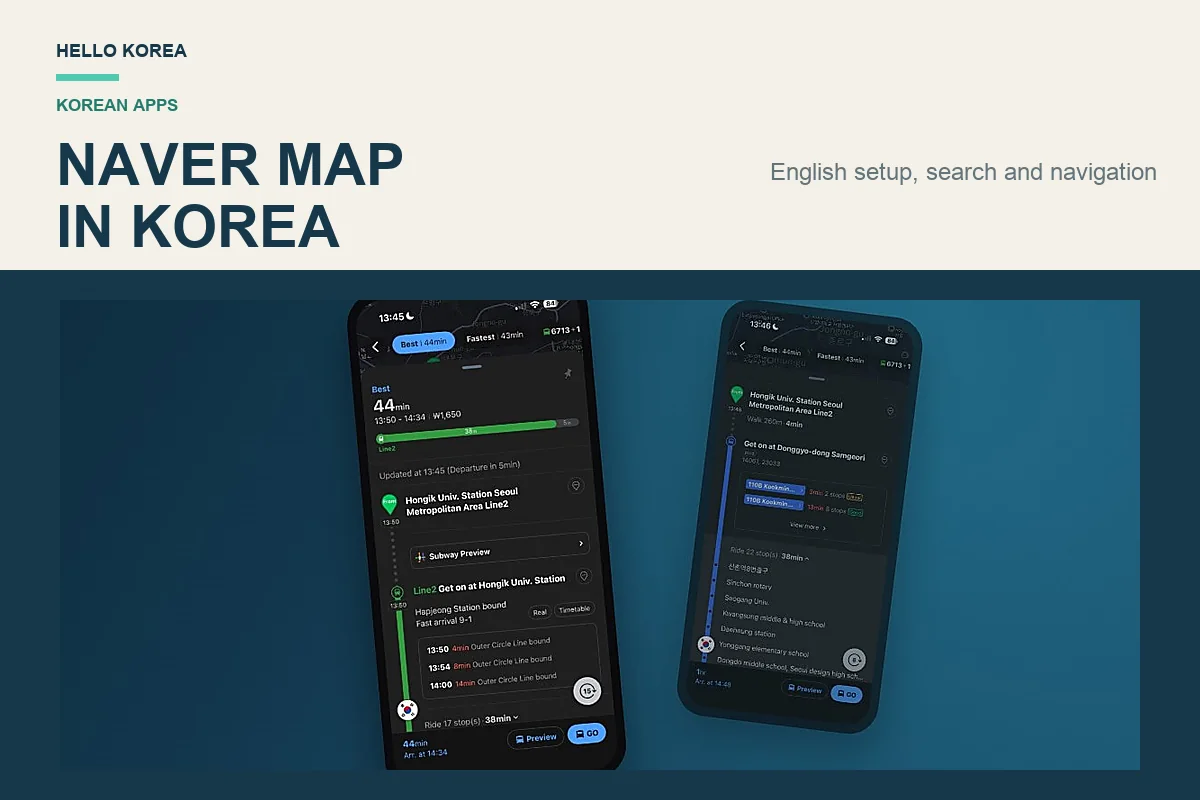
Quick answer: For NAVER Map English navigation in Korea, install the NAVER Map app, change the language to English, search for your destination by place name, tap Directions, and choose Public Transit or Walking. NAVER navigation shows subway exits, bus stops, arrival information, and the final walking route. If an English search does not find the exact place, paste the Korean place name or road address.
Do you need a NAVER account? No. You can search places and use subway, bus, walking, and driving directions without signing in or having a Korean phone number. Sign in if you want to save places. See our NAVER account guide for foreigners for what requires an account.
Quick Navigation
- Change NAVER Map to English
- Search Korean addresses
- Use subway and bus directions
- Use NAVER Map without an account
- Driving navigation in English
- Use NAVER Map on desktop
Last tested in Korea: September 2026. This guide includes hands-on tests of NAVER Map place searches, Korean and romanized addresses, bus navigation, walking directions, driving navigation with English voice guidance, and the NAVER Map website on a desktop browser.
If you’re visiting South Korea for the first time, Google Maps is probably the first navigation app you’ll think of using.
That makes sense. Google Maps works well in many countries, and most travelers are already familiar with it.
But in Korea, local navigation apps can be much more useful for everyday travel.
Google Maps is not completely unusable in Korea, but travelers can still run into limitations when checking local walking routes, public transportation, restaurant information, and Korean-language reviews.
That’s why two of the most widely used local options are NAVER Map and Kakao Map.
For tourists, NAVER Map is particularly useful because it combines:
- English interface support
- subway and bus navigation
- walking directions
- detailed local business information
- Korean reviews and photos
- indoor maps for some large buildings and stations
If you’re planning a trip to Korea, learning how to use NAVER Map before you arrive can make getting around much easier.
What Is NAVER Map and Why Use It in Korea?
NAVER Map is one of Korea’s most popular navigation and local-search apps.
The easiest way to think about it is:
NAVER Map = a Korea-focused alternative to Google Maps, optimized for local places and transportation.
Travelers can use NAVER Map to:
- search tourist attractions
- find restaurants and cafes
- check subway routes
- use bus navigation
- get walking directions
- estimate travel times
- view local reviews and photos
- save favorite places
- explore indoor maps for some malls and stations
If you’re spending time in Seoul, Busan, Incheon, Daegu, or Jeju, NAVER Map can become one of your most useful travel tools.
Step 1: Download the NAVER Map App
It’s best to install NAVER Map before arriving in Korea.
Airport arrival can already involve immigration, luggage, SIM or eSIM setup, airport transportation, currency exchange, and finding your hotel.
Installing the app before your flight makes the first day easier.
Search for NAVER Map in your phone’s app store.
Step 2: How to Change NAVER Map to English on iPhone and Android
One of the biggest concerns for international travelers is language.
NAVER Map supports multiple languages, including:
- English
- Korean
- Japanese
- Chinese

Open:
- Profile or MY
- Settings
- Language
- Choose English
Device note: On Android, open MY or the profile icon → the settings gear → Language. On iPhone, NAVER Map may open Settings → NAVER Map → Preferred Language. If that option is not shown, check Settings → General → Language & Region. Menu names can change after app updates.
Once the interface is set to English, many major destinations and transportation labels are easy to understand.
- Myeongdong
- Hongdae
- Gangnam
- COEX
- Incheon Airport
- Gyeongbokgung Palace
Can I use NAVER Map on a desktop browser?
You can open it, but you cannot read it in English. The NAVER Map website has no language setting. There is no web equivalent of the app’s language switch in Step 2, so the site stays in Korean.
The workaround is your browser’s own page translation. In Chrome or Edge, right-click the page and choose to translate it, and the menus, the search box and the route results become readable.
Expect one limit. Browser translation works on the text in the page, and the labels drawn onto the map surface are not page text, so station and street names on the map itself stay in Korean even after you translate.
So use the desktop site for planning at your hotel or before the trip. For anything you will do while actually moving around Korea, use the app.
Step 3: Understanding the Home Screen
The first time you open NAVER Map, the interface may look unfamiliar, but most travelers only need a few core features.
Search
Find places, attractions, restaurants, cafes, hotels, and addresses.
Directions
Check public transit, walking, driving, and other route options.
Current Location
Shows where you are on the map.
Saved Places
Useful for planning restaurants, attractions, and hotels in advance.
Reviews
Useful when checking Korean restaurants, cafes, photos, opening hours, and local feedback.

For most first-time visitors, the basic workflow is simply:
Search → Directions → Check Reviews
If you want to know how to use NAVER Map in Korea for everyday travel, these are the four features to learn first: place search, public-transit directions, walking navigation, and local reviews.
Step 4: How to Use NAVER Map in Korea for Place and Address Search
NAVER Map’s English search is better than many older travel guides suggest.

English Search Works for Most Tourist Needs
Popular destinations generally work well in English.
- Myeongdong
- Hongdae
- Itaewon
- COEX
- Lotte World
- Olive Young
- Starbucks
- Incheon Airport
If you are mainly visiting popular tourist areas, English search will often be enough.
English and Romanized Search Works Better Than You Might Expect
In our September 2026 testing in Korea, NAVER Map handled English place names and informal romanized searches surprisingly well.
For most travelers, the easiest approach is:
- Search the place name in English first.
- If multiple branches appear, check the address, photos, and opening hours before choosing one.
- If the exact place still does not appear, copy its Korean name or Korean address.
This is especially important for restaurants and cafes because the same brand may have several branches in one city.
How to Search Korean Addresses on NAVER Map
For first-time visitors learning how to use NAVER Map in Korea, searching by place name first is usually easier than starting with a full romanized street address.
Place-name searches and exact street-address searches do not always behave the same way. In our September 2026 tests, romanized Korean addresses could work, but the address format and word order sometimes changed the result.
If the address itself is the confusing part, look at the road name first. -ro marks a main road and -gil a smaller street branching off it, and the building number that follows tells you how far along that road you are going.
Romanized Korean Address: Successful Search
First, we searched:
seoul jongnogu sajikro 161
NAVER Map correctly recognized the location as Sajik-ro 161.

The Same Address in a Different Order
We then entered the same destination in a more Western-style address order:
161 Sajik-ro Jongno-gu Seoul
This time, NAVER Map returned nearby place results instead of directly resolving the street address.

Korean Road Address: The Safest Fallback
Finally, we searched the Korean road address:
서울 종로구 사직로 161
NAVER Map resolved the address directly.

Practical tip: Start with the English place name. If you need an exact street address and the romanized version does not resolve correctly, copy and paste the Korean road address instead.
We saw a similar pattern in a second test using a Sejongno address, so the result was not limited to a single search.
Step 5: NAVER Navigation for Transit, Walking and Driving
Quick Route Checklist
- Search for the destination by place name.
- Tap Directions.
- Choose Public Transit.
- Compare travel time, transfers, and walking distance.
- Check the subway exit number or bus-stop direction before the final part of the trip.
Route details and arrival estimates can change, so always use the app’s current result instead of relying on an old screenshot or route plan.
NAVER Map can display:
- total travel time
- estimated arrival time
- fare
- subway lines
- bus transfers
- walking segments
- exit numbers


Real Test: Seoul Station to Gyeongbokgung Palace
Once you understand how to use NAVER Map in Korea, combining buses, subway routes, and walking directions becomes much easier. We tested a real public-transit route from Seoul Station to Gyeongbokgung Palace in September 2026.
NAVER Map combined the trip into a single route and displayed the estimated travel time, fare, bus arrival information, number of stops, and walking segments.

The route also showed upcoming bus arrival times, making it easier to decide which bus to take instead of relying only on a static timetable.
After getting off the bus, the directions continued to the actual destination. In our test, NAVER Map showed a final 412-meter walk of about seven minutes to Gyeongbokgung Palace.

For first-time visitors, this is one of NAVER Map’s most useful features: public transit and the final walk to the destination can be handled as one continuous trip.
Does NAVER Map do driving navigation in English?
Yes. Alongside transit and walking, NAVER Map gives turn-by-turn driving directions, and the voice guidance comes in English.
It is not only the voice. The driving screen itself is in English. In the test below the turn banner reads 24m Turn left, the bar along the bottom names the destination in romanized Korean as Namhyeon-dong Gwanak-gu with the arrival time and the distance still to go, and the buttons around the map are labelled in English.
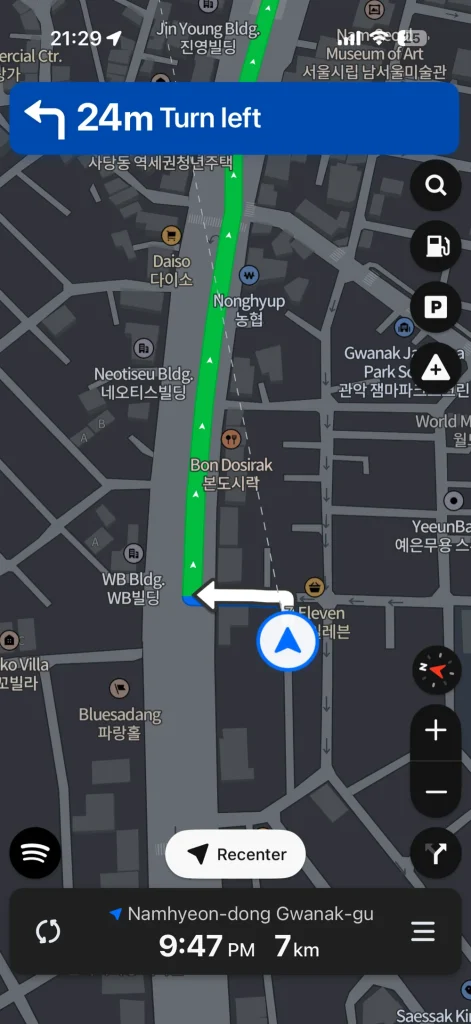
The place labels on the map are worth noticing separately. Each one carries the romanized name above the Korean, so Daiso sits over 다이소 and Seven Eleven over 세븐일레듈. You can match what you see out of the windscreen against the map without reading Hangul.
You also do not need to sign in for it. Driving navigation works without a NAVER account, so this is one part of the app where the account question does not come up at all — see whether you need a NAVER account for what an account actually changes.
If you are picking up a rental car, set the app language before you drive off rather than trying to change it at a junction.
Step 6: Understanding Subway Directions
Korea’s subway system is efficient and extensive, but the number of lines, transfers, stations, and exits can look intimidating at first. Our Seoul subway guide goes through reading the platform signs, changing lines and exit numbers.
A typical NAVER Map subway route can show:
- subway line number
- transfer stations
- estimated arrival times
- travel duration
- fare
- exit number
Why Subway Exit Numbers Matter
Large stations in Seoul often have many exits, and those exits can be far apart.
Choosing the wrong exit can mean crossing a major road, walking several extra minutes, or ending up on the wrong side of a large intersection.
Before leaving the station, check the exit number shown in NAVER Map.
Real-Time Subway Information

NAVER Map can also display train arrival or departure estimates. Live information is particularly useful during busy periods when a few minutes can change which route is fastest.
Step 7: Using Korean Buses Without Getting Lost
Korean buses are convenient, but bus stops can be confusing for first-time visitors because opposite-direction stops may be located close to each other.
NAVER Map can show:
- bus number
- stop name
- stop direction
- arrival time
- transfer details
- walking distance
Real-Time Bus Arrival Information

Arrival estimates can be useful when deciding whether to wait for a bus or walk instead.
Important: Don’t Check Only the Bus Number
A common tourist mistake is boarding the correct bus number from the wrong stop or in the wrong direction.
Always check:
- bus number
- stop name
- direction
Use the Bus Stop ID
Many Korean bus stops have a unique stop identification number.
If you see the same stop ID in NAVER Map and on the physical bus-stop sign, it can help confirm that you are waiting at the correct location.
Step 8: Walking Navigation
Walking in Korea is not always as simple as following a straight line on a map.
- narrow alleyways
- underground shopping areas
- large intersections
- confusing building entrances
- large subway stations
- shopping malls with multiple entrances

Walking mode is especially useful when finding cafes, restaurants, subway exits, and destinations inside busy neighborhoods such as Hongdae, Myeongdong, Gangnam, Seongsu, and Itaewon.
Step 9: Indoor Maps for Large Buildings
NAVER Map provides indoor maps for some large locations.
- COEX
- Starfield
- Seoul Station
- major department stores
- shopping complexes


Indoor maps can help when GPS is less useful inside large buildings. They may show restaurants, shops, floors, station areas, and other indoor points of interest.
Step 10: Use NAVER Map Reviews
One major advantage of NAVER Map is access to local Korean reviews, photos, menus, and business information.
For travelers, this can be especially useful when choosing restaurants and cafes.


What to Check in Reviews
- actual food photos
- menu images
- pricing information
- waiting-time comments
- atmosphere
- portion size
- recent visitor photos
Even if you do not read Korean, photos can still be useful. Translation tools such as Papago can help with text-heavy reviews.
Step 11: Save Places for Trip Planning
Saving places in advance can make your trip smoother.
Useful places to save include:
- your hotel
- airport
- restaurants
- cafes
- shopping spots
- tourist attractions
- train stations
Basic navigation works without logging in. Saving places is the first feature that needs a NAVER account — our guide covers what needs an account and what does not.
For step-by-step instructions, see our guide to saving places and sharing a NAVER Map list, with iPhone screenshots and a public-list test in a private browser.
Step 12: NAVER Map vs Google Maps vs Kakao Map
Which map app should you use in Korea?
For many first-time international visitors, NAVER Map is a strong all-around choice because it combines English support with detailed local transportation and place information.
| Feature | NAVER Map | Google Maps | Kakao Map |
|---|---|---|---|
| English interface | Good | Excellent | Fair |
| English place search | Good | Excellent | Fair |
| Local Korean information | Excellent | Varies | Strong |
| Subway navigation | Excellent | Useful | Good |
| Bus navigation | Excellent | Useful | Good |
| Walking navigation | Strong | Can vary | Strong |
| Local reviews | Excellent | Useful | Moderate |
| Indoor maps | Available for some places | Available for some places | Available for some places |
| First-time tourist usability | High | Very familiar | Medium |
NAVER Map is especially useful if your priority is local public transportation, Korean place information, restaurant discovery, and walking navigation.
Google Maps can still be useful for general planning and familiar map features, while Kakao Map remains another strong local option. If you want the detail on what Google Maps can and cannot do here, we tested it separately in Why Google Maps doesn’t work in Korea.
Step 13: Common NAVER Map Mistakes
Mistake 1: Using Only Google Maps
Google Maps is useful, but using a Korea-focused map app as well can make public transportation and local place searches easier.
Mistake 2: Boarding a Bus Based Only on the Bus Number
Always confirm the bus number, stop name, direction, and stop ID when available.
Mistake 3: Ignoring Subway Exit Numbers
Using the wrong exit can add unnecessary walking, especially at large Seoul stations.
Mistake 4: Ignoring Local Reviews
Recent local reviews and photos can help you judge restaurants, cafes, opening hours, menus, and waiting times.
Mistake 5: Assuming Every English Address Format Works the Same Way
Romanized Korean addresses can work, but exact results may change depending on the address format and word order.
If an English or romanized address does not resolve correctly, try:
- searching the place name
- pasting the Korean road address
- searching the hotel or business name directly
Mistake 6: Forgetting Indoor Maps
If you are inside a large mall, station, or shopping complex, check whether NAVER Map offers an indoor map before wandering around.
FAQ: How to Use NAVER Map in Korea
Is NAVER Map free?
Yes. NAVER Map is free to download and use for core features such as search, navigation, transit information, and place details.
Do I need a NAVER account?
No. You can use basic search and navigation without signing in. An account is only needed to save places, and identity verification only for booking and payment — see NAVER accounts for foreigners.
Does NAVER Map work in English?
Yes. NAVER Map supports English, Korean, Japanese, and Chinese.
In our September 2026 testing, English place-name searches worked well for popular attractions and businesses, and some informal romanized searches also returned useful results.
Exact romanized street addresses can be more sensitive to formatting. If an address does not resolve correctly, copy and paste the Korean road address as a fallback.
Can foreigners use NAVER Map?
Yes. Basic map search and navigation are available to international visitors, and the English interface makes the app much easier to use than many travelers expect.
Do I need a Korean phone number to use NAVER Map?
You do not need a Korean phone number for basic map searches and navigation. Sign-up accepts a foreign number, and since June 2026 you can clear identity verification with a passport.
Is NAVER Map better than Google Maps in Korea?
For local public transportation, Korean place information, walking routes, and local reviews, many travelers find NAVER Map more practical. Google Maps can still be useful as a familiar planning tool.
Is Kakao Map better than NAVER Map?
Both are useful local map apps. NAVER Map is often easier for first-time international travelers because of its English interface and strong local-search features.
Does NAVER Map work offline?
Not fully. Many useful features depend on internet access and live transit information, so mobile data, an eSIM, a local SIM, or portable Wi-Fi is recommended.
Can I use NAVER Map on a computer?
You can open the website, but it has no language setting and stays in Korean. Use your browser’s page-translation feature instead, and expect labels drawn on the map itself to remain Korean. The app, not the website, is the one with an English setting.
Does NAVER Map give driving directions in English?
Yes. Turn-by-turn driving guidance is available and the voice prompts come in English. You do not need to sign in to use it.
Final Thoughts
If you’re traveling in Korea for the first time, NAVER Map is worth installing before your trip.
Once you learn how to use NAVER Map in Korea, it can help you:
- navigate subway systems
- catch buses in the correct direction
- find the right subway exit
- search restaurants and cafes
- check Korean reviews and photos
- use walking navigation
- find your way through some large buildings
For a practical Korea travel setup, you can combine:
NAVER Map + Papago + T-money + a taxi app
That covers navigation, translation, public transportation, and taxis.
If you are using buses and the subway, pair this guide with our T-money card guide for Seoul.
You can also compare other useful apps in our best Korea travel apps guide.
Leave a Reply